Table of contents
Dealcar, Official Google Partner
At Dealcar, we are official Google partners, specialising in managing all your online campaigns in Google Vehicle Ads. With our platform, we simplify the whole process so you can focus on what matters most: selling more cars. From automatically synchronising your inventory stock to verifying your website and managing your campaigns, Dealcar does it all from one place.
What’s more, our team supports you every step of the way. We make sure your ads are optimised, reach the right customers and let you measure results in real time, all directly from Dealcar. If you want to increase the visibility of your vehicles and generate more leads without any hassle, we are your best ally. 🚗✨
Ready to transform your digital marketing strategy? Let’s talk!
What are Google Vehicle Ads?
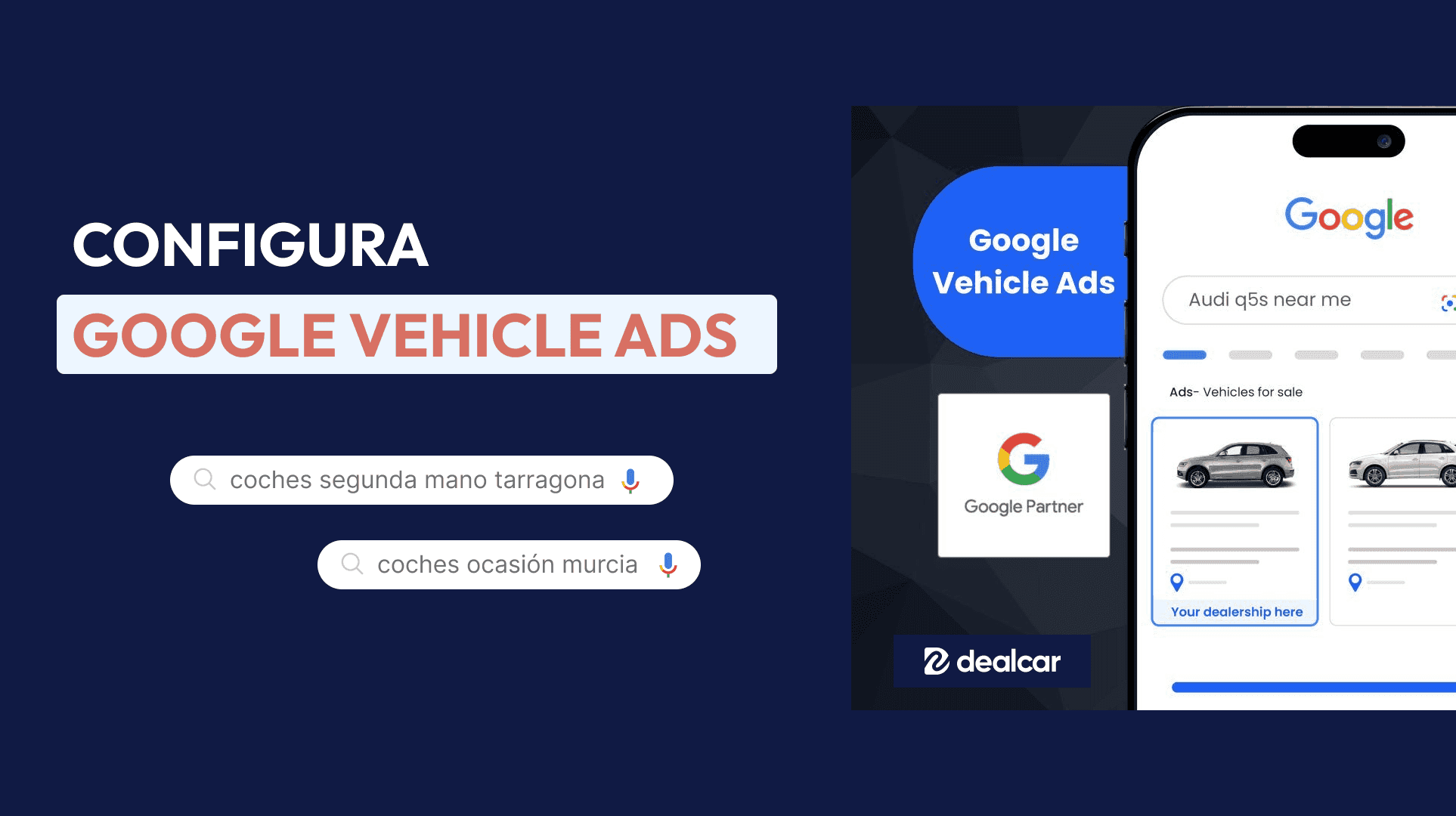
Google Vehicle Ads are a new Google ad format that allows dealerships and car buying and selling businesses to display their vehicles for sale directly in search results. Just like Google Shopping for products, Vehicle Ads show images and key details of cars, such as make, model, price and dealer, making it easier for users to find and buy vehicles that suit their needs.
This format is especially powerful because it connects buyers directly with the cars they are interested in. When a user searches on Google for terms such as "buy used car" or "Audi A3 for sale", Vehicle Ads appear at the top of the results, offering an attractive and relevant visual experience.
Benefits of using Google Vehicle Ads for your dealership
Implementing Google Vehicle Ads in your marketing strategy offers multiple advantages:
Greater visibility: Your vehicles appear in the most prominent area of search results, increasing the chances of catching the attention of potential customers.
Precise targeting: Ads are shown to users actively looking to buy a car, which increases the likelihood of conversion.
Detailed information: By showing images and key details, users get an immediate view of what you offer, improving their experience and confidence.
Competitiveness: By being present on this channel, you not only increase your reach, but also prevent the competition from capturing your potential customers.
Step by step to create a Google Merchant Center account and link it to Google Ads
To start using Google Vehicle Ads, you first need to set up your Google Merchant Center and Google Ads accounts and link them together. Below, we explain how to do it:
1. Create a Google Merchant Center account
The Google Merchant Center is the platform where you will upload and manage your vehicle inventory feed.
Go to the Google Merchant Center website and click on "Get started".
Sign in with your Google account or create a new one if you don’t have one.
Complete your business information:
- Company name (the name of your dealership).
- Country where you operate.
- Time zone.
Accept the terms and conditions to finish creating the account.
2. Set up your Google Merchant Center account
Once your account has been created, you need to configure some details:
Verify and claim your website:
- In the side menu, go to "Business information" and then "Website".
- Enter your website URL and follow the instructions to verify and claim the domain.
Set up shipping and returns preferences:
- Although this is not mandatory for Vehicle Ads, it is recommended to keep this information up to date.
3. Create a Google Ads account (if you don’t have one)
If you still don’t have a Google Ads account, follow these steps:
Visit the Google Ads website and click on "Get started now".
Sign in with your Google account (the same one you used for Merchant Center).
Follow the prompts to set up billing information and payment preferences.
4. Link Google Merchant Center with Google Ads
For your vehicle ads to appear on Google, you need to link both accounts:
In Google Merchant Center:
- Go to "Settings" and then to "Linked accounts".
- In the Google Ads section, click on "Link account".
- Enter the customer ID of your Google Ads account and send the request.
In Google Ads:
- You will receive a notification to accept the link.
- Accept the request to complete the process.
How to prepare and upload the vehicle inventory feed
The vehicle inventory feed is a file containing all the details of the cars you have for sale. It is essential that it is well prepared so that your ads display correctly.
1. Prepare the data feed
You need to create a file (it can be in XML, CSV or Google Sheets format) that includes the following attributes:
id: Unique identifier for each vehicle.
title: Descriptive title (Example: "Toyota Corolla 2020").
description: Detailed description of the car.
link: URL of the vehicle page on your website.
image_link: URL of the vehicle image.
condition: Vehicle condition (new, used).
price: Vehicle price.
brand: Make.
model: Model.
year: Year of manufacture.
mileage: Mileage.
color: Car colour.
2. Best practices when preparing the feed
Use clear and precise titles: Include make, model, year and any standout features.
Detailed descriptions: Provide relevant information that helps the buyer make a decision.
High-quality images: Make sure the photos are clear, well lit and show the vehicle from different angles.
Update the feed regularly: If a car is sold or new inventory arrives, update the feed to reflect the changes.
3. Upload the feed to Google Merchant Center
In Google Merchant Center:
- Go to "Products" and then "Feeds".
- Click the "+" button to add a new feed.
- Select the country and language.
- Choose a name for the feed and select the upload type (for example, Google Sheets or scheduled upload).
- Follow the instructions to upload your file.
Best practices for optimising titles, descriptions and prices in your feed
To make your ads stand out and attract the right customers, follow these recommendations:
1. Title optimisation
Be specific: Include the make, model, year and key features. Example: "BMW 3 Series 2019 - Automatic, Diesel, 150 hp".
Use relevant keywords: Think about terms buyers might use when searching for a car.
2. Improve descriptions
Highlight the benefits: Mention additional features such as fuel consumption, safety systems and extra equipment.
Keep a professional tone: Use clear language and avoid abbreviations or confusing jargon.
3. Competitive prices
Update prices: Make sure the price in your feed matches the one on your website.
Consider offers and promotions: If you have special discounts, reflect them in the price and mention them in the description.
4. Attractive images
High resolution: Use sharp, high-quality images.
Show the whole vehicle: Include photos of the exterior and interior.
Avoid overlays: Do not add text or logos over the images.
Practical example of an optimised campaign
Imagine you are the manager of a dealership and you want to promote an Audi A4 2018.
Step 1: Prepare the feed
You include in your feed:
id: a4-2018-001
title: "Audi A4 2018 - Petrol, 190 hp, Saloon"
description: "Audi A4 in perfect condition, one owner, GPS navigation, parking sensors, panoramic roof."
link: https://www.tuconcesionario.com/audi-a4-2018
image_link: https://www.tuconcesionario.com/images/audi-a4-2018.jpg
condition: used
price: 22,000 EUR
brand: Audi
model: A4
year: 2018
mileage: 40,000 km
color: Metallic grey
Step 2: Upload the feed and verify
You upload the feed to Google Merchant Center and check that there are no errors.
Step 3: Set up the campaign in Google Ads
In Google Ads:
- Create a new campaign and select "Sales" as the objective.
- Choose "Local inventory ads" or "Product ads".
- Select the products you want to promote (in this case, the Audi A4).
- Set the budget and bidding strategy.
Step 4: Monitor and optimise
Review performance: Monitor impressions, clicks and conversions.
Adjust based on results: If you notice that certain keywords generate more traffic, optimise titles and descriptions to boost those terms.
Conclusion
Setting up Google Vehicle Ads for your dealership is an effective strategy for standing out in the digital market and increasing your sales. By following the steps and best practices we have shared, you will be able to get the most out of this tool and reach more potential customers.
Do not forget to keep your inventory up to date, offer clear and attractive information, and constantly monitor the performance of your ads. In this way, your dealership will be one step ahead in the competitive world of online car buying and selling.
Discover the all-in-one software for car dealerships and buyers and sellers, Dealcar, which lets you manage all of this: upload cars, synchronise cars, validate the website and much more. It is time to put your vehicles directly in front of your future customers’ screens with Google Vehicle Ads!
Table of contents
Dealcar, Official Google Partner
At Dealcar, we are official Google partners, specialising in managing all your online campaigns in Google Vehicle Ads. With our platform, we simplify the whole process so you can focus on what matters most: selling more cars. From automatically synchronising your inventory stock to verifying your website and managing your campaigns, Dealcar does it all from one place.
What’s more, our team supports you every step of the way. We make sure your ads are optimised, reach the right customers and let you measure results in real time, all directly from Dealcar. If you want to increase the visibility of your vehicles and generate more leads without any hassle, we are your best ally. 🚗✨
Ready to transform your digital marketing strategy? Let’s talk!
What are Google Vehicle Ads?
Google Vehicle Ads are a new Google ad format that allows dealerships and car buying and selling businesses to display their vehicles for sale directly in search results. Just like Google Shopping for products, Vehicle Ads show images and key details of cars, such as make, model, price and dealer, making it easier for users to find and buy vehicles that suit their needs.
This format is especially powerful because it connects buyers directly with the cars they are interested in. When a user searches on Google for terms such as "buy used car" or "Audi A3 for sale", Vehicle Ads appear at the top of the results, offering an attractive and relevant visual experience.
Benefits of using Google Vehicle Ads for your dealership
Implementing Google Vehicle Ads in your marketing strategy offers multiple advantages:
Greater visibility: Your vehicles appear in the most prominent area of search results, increasing the chances of catching the attention of potential customers.
Precise targeting: Ads are shown to users actively looking to buy a car, which increases the likelihood of conversion.
Detailed information: By showing images and key details, users get an immediate view of what you offer, improving their experience and confidence.
Competitiveness: By being present on this channel, you not only increase your reach, but also prevent the competition from capturing your potential customers.
Step by step to create a Google Merchant Center account and link it to Google Ads
To start using Google Vehicle Ads, you first need to set up your Google Merchant Center and Google Ads accounts and link them together. Below, we explain how to do it:
1. Create a Google Merchant Center account
The Google Merchant Center is the platform where you will upload and manage your vehicle inventory feed.
Go to the Google Merchant Center website and click on "Get started".
Sign in with your Google account or create a new one if you don’t have one.
Complete your business information:
- Company name (the name of your dealership).
- Country where you operate.
- Time zone.
Accept the terms and conditions to finish creating the account.
2. Set up your Google Merchant Center account
Once your account has been created, you need to configure some details:
Verify and claim your website:
- In the side menu, go to "Business information" and then "Website".
- Enter your website URL and follow the instructions to verify and claim the domain.
Set up shipping and returns preferences:
- Although this is not mandatory for Vehicle Ads, it is recommended to keep this information up to date.
3. Create a Google Ads account (if you don’t have one)
If you still don’t have a Google Ads account, follow these steps:
Visit the Google Ads website and click on "Get started now".
Sign in with your Google account (the same one you used for Merchant Center).
Follow the prompts to set up billing information and payment preferences.
4. Link Google Merchant Center with Google Ads
For your vehicle ads to appear on Google, you need to link both accounts:
In Google Merchant Center:
- Go to "Settings" and then to "Linked accounts".
- In the Google Ads section, click on "Link account".
- Enter the customer ID of your Google Ads account and send the request.
In Google Ads:
- You will receive a notification to accept the link.
- Accept the request to complete the process.
How to prepare and upload the vehicle inventory feed
The vehicle inventory feed is a file containing all the details of the cars you have for sale. It is essential that it is well prepared so that your ads display correctly.
1. Prepare the data feed
You need to create a file (it can be in XML, CSV or Google Sheets format) that includes the following attributes:
id: Unique identifier for each vehicle.
title: Descriptive title (Example: "Toyota Corolla 2020").
description: Detailed description of the car.
link: URL of the vehicle page on your website.
image_link: URL of the vehicle image.
condition: Vehicle condition (new, used).
price: Vehicle price.
brand: Make.
model: Model.
year: Year of manufacture.
mileage: Mileage.
color: Car colour.
2. Best practices when preparing the feed
Use clear and precise titles: Include make, model, year and any standout features.
Detailed descriptions: Provide relevant information that helps the buyer make a decision.
High-quality images: Make sure the photos are clear, well lit and show the vehicle from different angles.
Update the feed regularly: If a car is sold or new inventory arrives, update the feed to reflect the changes.
3. Upload the feed to Google Merchant Center
In Google Merchant Center:
- Go to "Products" and then "Feeds".
- Click the "+" button to add a new feed.
- Select the country and language.
- Choose a name for the feed and select the upload type (for example, Google Sheets or scheduled upload).
- Follow the instructions to upload your file.
Best practices for optimising titles, descriptions and prices in your feed
To make your ads stand out and attract the right customers, follow these recommendations:
1. Title optimisation
Be specific: Include the make, model, year and key features. Example: "BMW 3 Series 2019 - Automatic, Diesel, 150 hp".
Use relevant keywords: Think about terms buyers might use when searching for a car.
2. Improve descriptions
Highlight the benefits: Mention additional features such as fuel consumption, safety systems and extra equipment.
Keep a professional tone: Use clear language and avoid abbreviations or confusing jargon.
3. Competitive prices
Update prices: Make sure the price in your feed matches the one on your website.
Consider offers and promotions: If you have special discounts, reflect them in the price and mention them in the description.
4. Attractive images
High resolution: Use sharp, high-quality images.
Show the whole vehicle: Include photos of the exterior and interior.
Avoid overlays: Do not add text or logos over the images.
Practical example of an optimised campaign
Imagine you are the manager of a dealership and you want to promote an Audi A4 2018.
Step 1: Prepare the feed
You include in your feed:
id: a4-2018-001
title: "Audi A4 2018 - Petrol, 190 hp, Saloon"
description: "Audi A4 in perfect condition, one owner, GPS navigation, parking sensors, panoramic roof."
link: https://www.tuconcesionario.com/audi-a4-2018
image_link: https://www.tuconcesionario.com/images/audi-a4-2018.jpg
condition: used
price: 22,000 EUR
brand: Audi
model: A4
year: 2018
mileage: 40,000 km
color: Metallic grey
Step 2: Upload the feed and verify
You upload the feed to Google Merchant Center and check that there are no errors.
Step 3: Set up the campaign in Google Ads
In Google Ads:
- Create a new campaign and select "Sales" as the objective.
- Choose "Local inventory ads" or "Product ads".
- Select the products you want to promote (in this case, the Audi A4).
- Set the budget and bidding strategy.
Step 4: Monitor and optimise
Review performance: Monitor impressions, clicks and conversions.
Adjust based on results: If you notice that certain keywords generate more traffic, optimise titles and descriptions to boost those terms.
Conclusion
Setting up Google Vehicle Ads for your dealership is an effective strategy for standing out in the digital market and increasing your sales. By following the steps and best practices we have shared, you will be able to get the most out of this tool and reach more potential customers.
Do not forget to keep your inventory up to date, offer clear and attractive information, and constantly monitor the performance of your ads. In this way, your dealership will be one step ahead in the competitive world of online car buying and selling.
Discover the all-in-one software for car dealerships and buyers and sellers, Dealcar, which lets you manage all of this: upload cars, synchronise cars, validate the website and much more. It is time to put your vehicles directly in front of your future customers’ screens with Google Vehicle Ads!